Name your price for four excellent indie games -- six, if you pay above the average, which is currently mere USD 4.59! The above-average-price games are Fez and FTL: Faster Than Light which have both received highly favorable reviews. Within the four games that you can get for any price there's for example such a gem as Mark of the Ninja. All the games work for Windows, Linux and Mac. You'll get Steam keys and you also get to download them, free of any DRM technologies that would hinder the gaming experience.
Näytetään tekstit, joissa on tunniste Linux. Näytä kaikki tekstit
Näytetään tekstit, joissa on tunniste Linux. Näytä kaikki tekstit
lauantai 14. syyskuuta 2013

lauantai 17. marraskuuta 2012
Humble Bundle for Android 4
There's six more days left to get six Android (and PC, and Linux, and Mac) games for whatever price you want to pay! Pay above the average and you'll even get five bonus games!
lauantai 16. kesäkuuta 2012
Frozen Synapse

The game has several different modes and a "Dark" and "Light" variant of each. In the Light versions you always see where the enemies are, whereas in the Dark versions you only see the enemies that are currently in the field of vision of your troops. Once you lose a sight to an enemy in a Dark game a "shadow" of the enemy stays at their last known location along with an info text like "Last seen 2.8 seconds ago".
 |
| A maneuver assigned to a machine gunner. |
In all game modes you can simulate the end result of a turn in the planning phase. This means that you can also assign commands to the enemy troops and move them around when you try to anticipate what the enemy will actually do. Simulating is crucial. The game is deterministic, so if in your simulation a soldier gets shot, he will get shot the same way in the actual outcome -- provided that everything stayed the same compared to the simulation. A slightly differently placed unit may yield a completely different result.
Let's watch a game of Dark Disputed I just finished. (Unfortunately the replay doesn't show the actual fields of vision for the troops.) The replay doesn't include the planning phases, just the action, so it lasts only 30 seconds. Remember that there was a planning phase every five seconds. I was controlling the green team and my enemy was controlling the red team. I recommend opening the video in a separate window and watching it with the HD quality:
At 00:06 my sniper at the right gets an enemy gunner to his sights and takes him down a couple of seconds later; that's the first casualty of the game. The turn ends a second later when my gunner and an enemy gunner have just opened fire at each other. The simulation reveals that the bullet that's on its way already is going to kill the enemy, so he cannot dodge it and gets shot right at the beginning of turn three. During turn two my other gunner also ran up across the enemy sniper's line of fire because the simulation revealed that the enemy wouldn't have the time to take the shot. From his new position my gunner also opens fire against an enemy gunner trying to run down across the map at 00:10.
Again when I simulate the situation in the planning phase it appears that the enemy running down may be able to escape from my gunner who just opened a fire against him, so I turn the gunner in the middle to face the doorway in case the enemy would try to flank him. Luckily he takes the enemy down himself at 00:14, so there are only two enemies left now. My gunner at the bottom was ready to greet the enemy had he ran downwards instead of just stupidly staying put in the middle.
At the start of turn three my soldiers had caught a glimpse of an enemy gunner going into the room at the upper left corner. Since shotguns are very powerful at close range I decide to have my shotgunner clean the room and make an elaborate plan on how he would enter the room from the top door. I test my plan with the enemy soldier in every corner of the room until my shotgunner comes across as a winner in every scenario. The machine gunner and the sniper are his backup, and indeed the machine gunner engages in a firefight with the enemy right before the shotgunner enters the room and kills him at 00:19.
At 00:20 the fourth turn ends and the red boxes appear. My sniper is on the other side of the playing area and I decide that the three machine gunners are enough to take the final enemy sniper down, so the sniper goes to collect a couple of boxes. The shotgunner stays at the room he just cleaned and guards the windows in case the enemy sniper would run past them. Finally, it's the machine gunner that's ducked in the bottom room who kills the enemy at 00:23. The replay then plays for one more turn that I didn't actually play and you see my sniper exiting the area with the two boxes he had collected.
So, this hopefully gives you a fairly good picture of the game. Besides the multiplayer mode there's also a single player campaign and a possibility to play quick skirmish matches against the AI, but multiplayer is clearly the most interesting part of this game. The game is cross-platform so Windows, Linux & Mac versions exist. The game can also be bought from Steam, and there's an unofficial Frozen Synapse Wiki for you to use as a reference. Finally, it takes a little patience to really get into the game, but if you intend to play it you should probably also read this blog entry called How Not to Be Shot in Frozen Synapse. :)
maanantai 26. maaliskuuta 2012
The Humble Bundle for Android #2
Again, it's time for yet another Humble Bundle. That's five or six games that work on Windows, Linux, Mac and Android, for whatever price you want to pay! There are just seven days left of this offer, so go to humblebundle.com and act now!
maanantai 6. helmikuuta 2012
The Humble Bundle for Android
The Humble Bundle is a concept that I've written about several times already. In short, they publish a few cross-platform games and let you pay anything you want for them. The newest addition to the Humble Bundle series is the Humble Bundle for Android which contains four different games that work not only for Android but also for Windows, Linux and Mac! As of writing this post there are still eight days left for you to grab this offer. The games are Anomaly: Warzone Earth, Osmos, Edge and World of Goo.
tiistai 12. huhtikuuta 2011
The Humble Frozenbyte Bundle
Last December I wrote about The Humble Indie Bundle #2, a collection of indie games for whatever price you chose to pay. Apparently it was a great success as a new humble bundle is already out: The Humble Frozenbyte Bundle. The games are Trine, Shadowgrounds: Survivor, Shadowgrounds, Splot and Jack Claw. I don't know much about any of them but I bought the bundle anyway. All of the games work on Windows, Linux and Mac. You can also donate part or all of the price to charity. As I'm writing this the bundle has been out only for some 2 to 3 hours and has already been bought more than 27000 times with an average purchase of 5.20 USD. :)
lauantai 25. joulukuuta 2010
The Humble Indie Bundle #2
There's only 13 hours left of this offer so act quickly: The Humble Indie Bundle #2 offers five indie games for whatever price you choose to pay! The games are Braid, Cortex Command, Machinarium, Osmos and Revenge of the Titans and most of them are redeemable on Steam as well. If you pay above what the average user pays (currently 7.80 USD) you'll also get the first Humble Indie Bundle which contains six games, including the hits World of Goo and Gish. World of Goo alone is well worth the 7.80 USD and I have heard good things about Braid, Machinarium and Gish as well. This is the first time I hear about Osmos but it looks interesting too. I already bought the games and might have done that even if I already had all the games as I find the Humble Bundle concept very supportable.
sunnuntai 22. elokuuta 2010
Dropbox

Dropbox is a neat online service for saving your files. It is basically an online hard drive where you can store any kind of files to be accessed from anywhere. Using Dropbox has been made very easy: you register to the site and download and install a client application, which then displays as a regular folder in your file system. The magic happens when you move or copy files into that folder: they are automatically copied into the Dropbox servers and you can access them from any other computer, either by using the online user interface or by the dedicated client!
The client is available for Windows, Linux, Mac and even some mobile platforms, so there's really no reason not to use Dropbox even if you use multiple computers with different operating systems. I figure Dropbox is a great way of storing data when using a netbook: even if the system breaks, your data will be safe, plus it will be available for your desktop computer as well. It is also unlikely that you will be handling very large files with a netbook that doesn't have too much power so the default amount of 2 GB that you get should be plenty. Register using this link and you'll even get an extra 250 MB of storage space. :)
I registered to Dropbox in the spring when someone wanted to share some photos with me (yes, Dropbox can easily be used for sharing files too, and no, those who then just want to view your files don't need to register). After that I forgot about it until I tried the Jolicloud Linux distribution which has got some sort of a Dropbox integration. I figured Dropbox would be an excellent place to store, for example, my KeePassX password database file so I could access it from both Windows and Linux, and from both my desktop computer and my netbook. I have now also saved the installation packages of some key software to Dropbox so that the next time I'm installing a fresh system I won't have to browse through a dozen web sites to get all the programs I need.
lauantai 14. elokuuta 2010
Jolicloud
After trying Ubuntu Netbook Edition (UNE from now on) and failing I decided to try something else. At the comments of the post someone suggested Jolicloud (JC) so I chose that. Jolicloud is yet another Linux distribution, the current version being based on a not-so-current Ubuntu 9.4. Jolicloud is based on the idea of utilizing the services on the web – the cloud. This should mean it is pretty tightly tied with Facebook, Twitter, Google Docs, Dropbox and such services.
 Exciting, huh? Sure, at first, once you realize that those icons to Facebook, Flickr, etc. are actually nothing but glorified shortcuts to your browser (Chromium by default). The shortcuts present the web sites without any of the browser UI such as back/forward/reload buttons or the address bar. Click on a link that would take you to an external site and a new, "real" browser window opens. Also, notice those white dots at the bottom of the launcher? They change the page. Not that intuitive.

 Thanks for nothing. Even if all my friends were using Jolicloud, what would I see here? "Mr. X likes the VLC media player application" or "Ms. Y installed the Spotify application". Wow, how interesting. And once everyone got ready with installing everything they needed, the stream would just dry out. Seriously, the Jolicloud team needs to thoroughly rethink this stream thing.
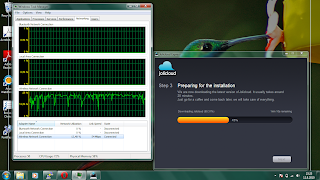
So, I downloaded the Jolicloud Windows installer, followed the instructions from the site and got the system up and running really easily. The installer even created a nice boot menu so I can choose between Windows 7 and Jolicloud when the computer starts. (And I did even validate that I can still boot to Windows, unlike with UNE!) Here's a screenshot of the Windows installer:
The installer forced me to either create a Jolicloud account or to link one with my Facebook account. Well, if the idea of the OS is to utilize the possibilities of social networking, then I suppose I must choose the Facebook option. Turns out none of my FB friends are using Jolicloud... So much for that synergy.
When Jolicloud booted up the first time its relationship with Ubuntu became very clear to me. The top-bar and the mouse cursors were practically indistinguishable from UNE. Like UNE, Jolicloud also likes to maximize new windows automatically (which sometimes results in sad views when the new window is just a small prompt with few words and just one or two buttons). The launcher, which is apparently a popular concept with Linux distributions customized for netbooks and contains the most popular programs, does look different though:
 Exciting, huh? Sure, at first, once you realize that those icons to Facebook, Flickr, etc. are actually nothing but glorified shortcuts to your browser (Chromium by default). The shortcuts present the web sites without any of the browser UI such as back/forward/reload buttons or the address bar. Click on a link that would take you to an external site and a new, "real" browser window opens. Also, notice those white dots at the bottom of the launcher? They change the page. Not that intuitive.
At this point I should probably mention that the Jolicloud launcher is made using HTML5 and apparently loads from the net. Thus, if you were using a few different computers and had Jolicloud installed on each of them, JC would keep your launchers synchronized. However, the launcher can only contain programs installed from the dedicated Jolicloud App Center, so programs installed with apt-get (known as "legacy apps" in JC) can never show up in it, which I find distracting. You can't even add a shortcut to the terminal into the launcher! Luckily I found a way to install the shortcut into the top bar. The terminal (and other programs) can also be launcher from the menu which can be brought up using the, well, menu-key of your keyboard (the one that's likely to be located between your AltGr and right Ctrl. Not the one with the Windows-flag, that shows the launcher.) So the profit from having your launcher synchronized (and probably some other settings too) is not too obvious. Sure, JC is a nice, new toy OS but who'd want to immediately install it into every computer they use?
Anyway, let's continue the tour. Above the shortcuts of the launcher there are a few icons: "Add", a satellite dish, a folder and a gear. The folder and gear are pretty obvious, they bring up the folders and some settings (namely your Jolicloud account information). The "Add" button brings up the App Center I already mentioned:
It's pretty much what you'd expect: a selection of apps someone else has picked as being representative. The Communication category, for example, contains about 20 instant messaging and email client applications, etc. I guess someone might have fun trying out all the different apps. However, I still don't approve of the concept of calling simple web links "applications". As noted before, installing the "YouTube application" only creates a shortcut to the site, etc. There are, of course, "real" applications to be installed too, such as the VLC media player, but if the application refers to a web site then it's certainly just a shortcut to that website.
VLC reminds me of another problem with Jolicloud: the audio won't work! I can (most of the time) hear the "jungle sound" that is played at start up but after that the netbook goes mute, sooner or later. You might just hear a faint "plop" from the speaker when trying to play an audio file.
Onwards. The next icon at the top row is the satellite dish, the "Stream". Great! This must be the heart of the system! I bet this is where all my social networking feeds and emails are joined together and displayed to me with little icons! Not quite. Not like that at all, in fact. Turns out the stream, despite having such a great showcase place in the user interface, only displays messages from your Jolicloud account. Remind you, none of my Facebook friends are using JC. My stream is not very flowy:
 Thanks for nothing. Even if all my friends were using Jolicloud, what would I see here? "Mr. X likes the VLC media player application" or "Ms. Y installed the Spotify application". Wow, how interesting. And once everyone got ready with installing everything they needed, the stream would just dry out. Seriously, the Jolicloud team needs to thoroughly rethink this stream thing.
The rest of the two buttons I already explained but I'll still comment on the folder button. The launcher works with a one-click principle: hoover your cursor over an icon to highlight it, click on it to open it. The folder view displays your personal Documents, Pictures, Music, Videos and Windows folders with the same style as everything so far. Opening a folder, however, launches the Nautilus file browser which just doesn't match the visual style of the rest of the system. It also works so that you need to double click an item to open it, which is a slightly irritating inconsistency.
So, let's recap. JC is a rather new and young OS. The basic idea behind it is good but seriously lacks in execution. Jolicloud also does not contain a hibernate mode at all, which is a bad disadvantage for an OS designed for netbooks. It also does not support the Fn key combinations of the keyboard so you cannot, for example, adjust the brightness of the screen. Thus you are pretty much stuck with the retina-burning level that also draws the battery quickly. However, Jolicloud is a Linux distribution anyway and for me has it some definitive advantages over the Ubuntu Netbook Edition:
- It installed easily on the side of Windows 7 and did not wreck my Windows installation
- You can access your Windows file structure from Jolicloud just like that, with no extra tricks whatsoever
- The native resolution of the screen, 1366x768, works out of the box
- Jolicloud feels faster than Ubuntu Netbook Edition
tiistai 13. heinäkuuta 2010
Ubuntu Netbook Edition
It all started when I wanted to know what www-address does my new blu-ray player contact to at start up. That should've been easy enough: just install Wireshark and listen to the traffic in the air. After all, it's my WLAN so I'm free to tap it and can even turn the encryption off temporarily. Unfortunately it turns out that virtually no Windows Wi-Fi card driver supports the so-called promiscuous mode which means listening to traffic not addressed to the listening host. Luckily almost all Linux drivers do support it.
So, I figured I'd install some live distribution of Linux into a memory card, boot the computer from that, install Wireshark and get the job done. Fair enough, that was rather easy. I followed the instructions at the Ubuntu Netbook Edition download page, edited the BIOS settings so that booting from an USB device is allowed and so that something called the "quick boot" is disabled. Then I only had to figure out that to actually boot from an USB device (or the card reader) you'd have to hit ESC when the BIOS was starting up.
Now, the Ubuntu started fine, "apt-get install wireshark" worked perfectly and I managed to capture all sorts of traffic caused by the blu-ray player. Job well done, end of story, let's go home? Not quite. As we say in Finland, appetite comes with eating. I had had a small bite of Linux and now I wanted more. I figured I'd start with the screen resolution: it was set to 1024x768, which meant it was badly distorted because the native resolution of the screen is 1366x768. So I looked for some instructions for installing new drivers for the video chip, Intel GMA500, and found this one.
After doing the "sudo add-apt-repository" and "sudo apt-get" commands I restarted the computer, booted to Ubuntu again -- and was greeted with a white screen and an error message. Obviously the drivers didn't work that well. The Ubuntu crash reporting application refused to send an error report as there was a few hundred megabytes of outdated packages installed. So I tried updating everything using the Synaptic package manager, but the system brought it to my attention that there wasn't enough space for these updates in the memory card where I had installed Ubuntu.
At this point I should've stopped, booted back to Windows and erased Ubuntu from the memory card, but instead I got a better idea: I'd install Ubuntu to a free partition on the hard disk. After all, what could possibly go wrong?
Well, a lot of things. For one, the Ubuntu Netbook Edition installer apparently overwrote the master boot record of the hard drive, rendering Windows unusable -- trying to boot to Windows would only bring up an error message and a recommendation to re-install the entire system. Right. Luckily ASUS had added a hidden 10 GB partition into the hard drive with an image of a working system. Also, it's just a netbook so I didn't have much stuff in it that I couldn't reinstall back later. A few photos maybe, but I wouldn't miss those.
So, the system restore can be launched at the boot up time and I did that. Surprisingly, it did absolutely nothing, besides probably erasing all my data. Ubuntu cannot read the mangled Windows partition either, otherwise I would've rescued all my data beforehand, of course. OK, so, now I had no Windows but an Ubuntu with a terrible resolution. Surely the video chip drivers would work once I updated all the outdated packages? Nope. I was greeted with the same white screen, and this time I didn't even get an error message. I could use it by launching a terminal and other programs from that but it isn't that much fun.
So now I've got a crippled netbook with a Linux system running from a memory card and no Windows and none of the data I previously had on my Windows installation. Luckily the Ubuntu on the memory card works fine, except for the bad resolution... Moral of the story? Don't install Ubuntu Netbook Edition on your Asus EeePC 1101HA if you plan to keep your Windows too. Also don't go messing around with the video chip drivers. Just use Ubuntu from a memory card or an USB disk if you must, but don't go beyond that.
keskiviikko 3. maaliskuuta 2010
Pidgin instant messaging software
 Windows ships with the Messenger instant messaging (IM) software. I, too, use Messenger, along with ICQ that I have even been using for a much longer time.
A while ago I found out that my Messenger was taking ridiculous amounts of CPU time, slowing down the entire system. It appears that it was because of (some of) the advertisements that the main view displays so I started looking for another IM software and found Pidgin. It is a lot faster than Messenger and does not display any advertisements. It also supports multiple IM protocols, i.e. you can use both ICQ and Messenger using the same piece of software. Google Talk and many other protocols are supported too, so give it a try. :)
PS. Related to alternative software: a month ago I wrote about alternative web browsers!
sunnuntai 14. helmikuuta 2010
Password management
Many of us have dozens of passwords to tens of different services: emails, web forums, workplace computers, games, etc. It is often quite difficult to remember all of them and as a result people use the same password in many services. This is a bad habit because now if your password gets stolen from one service, the attacker gains access to your other systems too. Many people also use very weak passwords, something like "qwerty" or "12345", which are easy to guess just by trying out the most common alternatives.
Luckily there are solutions to these problems: password manager programs. The program saves and encrypts all your passwords behind one master password. That one still needs to be a strong one and you need to memorize it, but after you have set up the system, that's the only password you are ever going to have to remember again. I have been using KeePass and its cross platform version KeePassX. I won't bother writing a full featured review as I just found a recent KeePass review by soft2review, so if you are not yet convinced that you need KeePass, go read it!
Tilaa:
Blogitekstit (Atom)